
Published
Credit Notes Meet e-Invoicing: Getting Adjustments Right
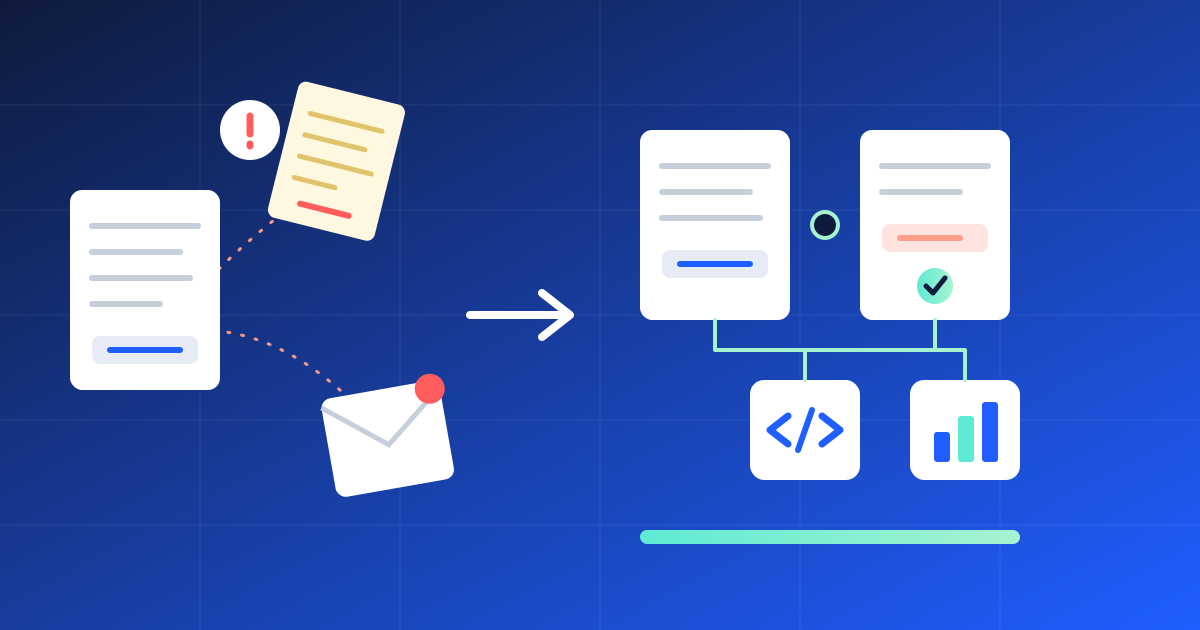
It is month-end. A vendor emails a credit note for a short delivery. It sits in one person's inbox, while the original invoice is paid in full. Two months later, nobody remembers the refund.
If that sounds familiar, your credit notes and debit notes are living outside the record they correct. Here are four steps that keep every adjustment attached to its invoice, and how WeManage Procurement handles each one.
1. Record every credit note and debit note against its invoice
What it looks like. A correction arrives as an email attachment or a PDF in a shared folder, away from the invoice it changes.
Why it costs you. Payment goes out on the original amount, and someone has to chase the difference later.
How WeManage handles it:
- A vendor opens E-ADJUSTMENT from the App Launcher, picks the CREDIT NOTE or DEBIT NOTE tab and clicks + Add New Record. Alternatively, the vendor ticks the related invoice or invoices in the Invoice sub-tab first.
- In the ADJUSTMENT HEADER tab, the vendor enters the key details, such as the related purchase order or contract, the payment milestone and the adjustment type.
- The vendor uploads the official credit note or debit note as a supporting document and clicks SUBMIT. Where the buyer requires approval for adjustments, the status moves from Draft to Submitted for Approval.
- If the note arrived outside the system, a buyer user logs it on the vendor's behalf. Open the App launcher, select Adjustment under Fulfilment and Invoicing, choose the tab and click + Add New Record. Or select one or more invoices in the Invoice listing, which shows only Approved invoices whose purchase order or contract is Approved or Published.
2. Put every adjustment in front of the right approver
What it looks like. Whoever opens the email first accepts the credit note.
Why it costs you. A change to what you owe goes through without a second pair of eyes.
How WeManage handles it:
- Adjustment approval is on by default. A System Admin can turn it off in the Application Setting, under Post Award, by unticking Require Adjustment (CN/DN) Approval.
- The default approver is the Head of Department of the record owner when the adjustment has a purchase order or contract. Without one, it is the Adjustment PIC set in the Application Setting, where Create Adjustment without PO/Contract is switched on (it is off by default). The approver gets an email.
- The approver opens Task from the App launcher, clicks the Adjustment (CN/DN) tab and then the Adjustment Reference No. to review the header, items and supporting documents. Tolerance checking and 3-way matching do not apply to adjustments, so the approver checks the amounts manually.
- In the SUBMISSION tab, the approver chooses Approve, Reject or Rework from ACTION. With Reject, the vendor or record owner raises a new adjustment. With Rework, they edit it and resubmit. VIEW APPROVAL LOG shows who did what.
- After approval, a System Admin, Procurement Officer or Finance user can still click REWORK if a note needs correcting.
3. Keep the budget in step with each approved note
What it looks like. The credit note is agreed, but the budget still shows the full spend.
Why it costs you. Budget reports overstate what you have used.
How WeManage handles it:
- Where budget control is switched on in the Application Setting, under the Budget tab, the Invoice PIC selects the Budget Code and COA (chart of accounts) for each line item of a vendor's adjustment before it goes for approval. At approval, the Adjustment PIC updates the Main Budget Code in the ADJUSTMENT HEADER tab.
- Once the adjustment is approved, the system updates the budget balance and the utilized budget by adjustment type. A credit note from the vendor raises the balance and lowers the utilized budget. A debit note from the vendor does the opposite. Notes from the buyer to the vendor work in the reverse direction.
4. Keep adjustments in step with your e-invoices
What it looks like. Invoices go out as e-invoices, but the corrections that follow are loose PDFs with no link to the original.
Why it costs you. Finance has to reconcile the invoice and its correction by hand.
How WeManage handles it:
- Where IRBM e-Invoice is enabled in the Application Setting, under the Post Award tab (it is off by default), the IRBM e-Invoice checkbox is ticked by default in the ADJUSTMENT HEADER tab. Untick it if the adjustment does not need to be compliant.
- Where Require Additional Verification after IRBM e-Invoice Submission is switched on (also off by default), a further verification follows once the IRBM Unique Identifier No. and the IRBM e-Invoice document have been submitted. The setting is shared by invoices and adjustments.
- After an IRBM-compliant adjustment is verified and approved, both the buyer and the vendor can download its XML file.
What's next in the industry
Industry commentary on AI in e-procurement highlights emerging capabilities such as matching invoices to orders automatically and spotting unusual billing early. While these capabilities reflect broader market developments, they are not currently part of the functionality described in this article for WeManage Procurement.
Quick self-check: how many of these sound like your team?
- Credit notes arrive by email and nobody logs them against the invoice.
- An invoice was paid in full after the vendor had already sent a credit note.
- Credit notes are accepted by whoever sees them first.
- The budget still shows spend that a credit note has already reduced.
- Corrections to e-invoices travel as loose PDFs.
Two or more? Keeping every credit note and debit note on the record it corrects, with an approver and a budget update behind it, closes those gaps.
Manage credit notes and debit notes in one place
WeManage Procurement keeps each adjustment linked to its invoice, from submission to approval. Want to see it? Talk to the V-Work team and we will walk you through a credit note from vendor submission to approval.