
Published
Stop Re-Hiring Underperforming Vendors
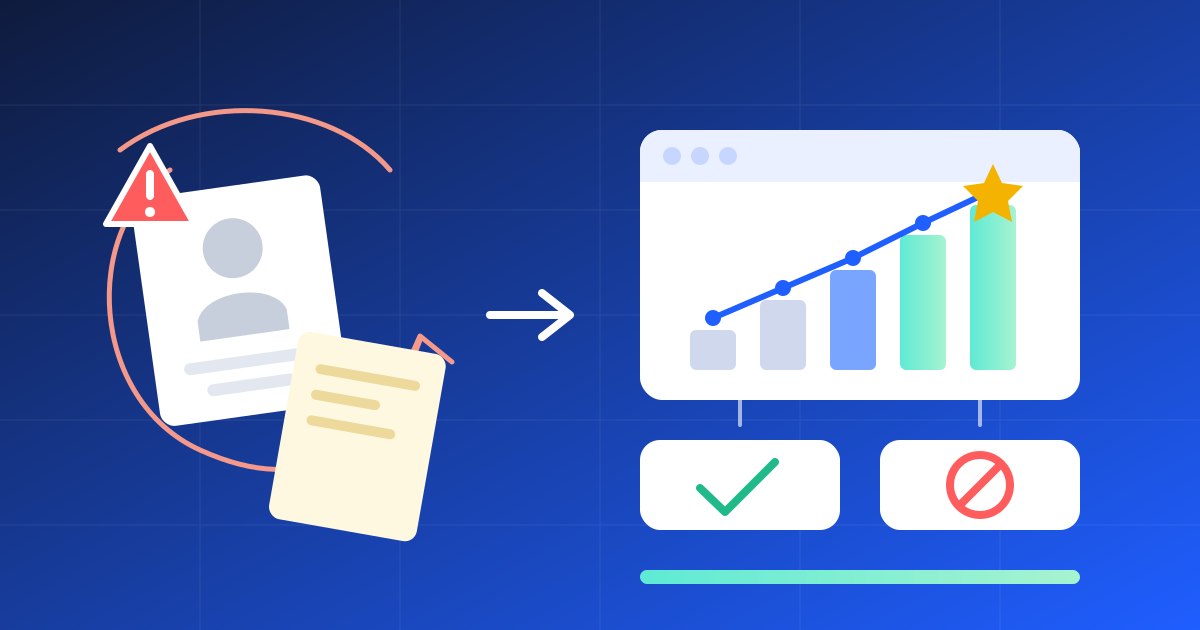
A new project needs a fencing supplier by Friday. Someone says, "Use the vendor from last year. They quoted fast." Nobody mentions that the last delivery came two weeks late and half the items were wrong. The person who remembered has moved to another team.
If that sounds familiar, your vendor performance lives in people's heads instead of on a record. Here are four steps that keep vendor performance on record, so the next award starts from facts. For each one: what it looks like, why it costs you, and how WeManage Procurement handles it, step by step.
1. Record vendor performance after the work, not from memory
What it looks like. Feedback about a vendor sits in chat messages and hallway comments. A few projects rate their vendors. Most do not.
Why it costs you. Without a record made at the time, the next team starts from zero, and a good memory is the only safeguard.
How WeManage handles it:
- Where Vendor Performance Evaluation is switched on (it is off by default), a System Admin chooses when an evaluation task is created: when a vendor accepts a Purchase Order, when a Contract expires, on set dates for published Contracts (up to two a year per contract), or on an ad hoc request.
- When one of those moments arrives, the system creates a Vendor Performance task. The evaluators are assigned from the workflow settings.
- For anything outside those moments, open Vendor Performance under Vendor Management, click Add New Record, fill in the Details tab and save. The Details tab cannot be edited after the first save.
2. Score every vendor on the same sheet
What it looks like. One manager calls a vendor "fine". Another says "never again". Neither used the same yardstick.
Why it costs you. Opinions cannot be compared. You cannot rank one vendor against another when each was judged differently.
How WeManage handles it:
- A System Admin sets up a scoresheet template for each evaluation type: Contract, Purchase Order or Non-Award. Scoring bands, which are named score ranges, can be added.
- The evaluator opens the evaluation from the Vendor Performance listing, goes to the Evaluation Rating tab, answers the scoresheet questions and clicks Save to keep progress.
- The system calculates the total score, and the scoring band where bands are set up. The evaluator reviews it and clicks Submit.
- Where more than one level of evaluation is set up, the next evaluator gets an email after the first one submits. Until the evaluation reaches approval, each evaluator sees only their own scoresheet, total score and remarks.
- Where approval is required, the approver gets an email once all evaluators have submitted. The approver opens the task from Task in the app launcher and chooses Approve, Reject or Rework. With Rework, the evaluators resubmit. The approval log shows who did what.
3. Check a vendor's history before you invite or award
What it looks like. Before an invitation goes out, someone searches old emails for the vendor's name and hopes to find the story.
Why it costs you. A vendor that failed twice can still look like the safe choice, because nobody can see the pattern.
An example. Before inviting the fencing vendor, your officer opens its profile, sees two past evaluations and a line chart that sits below the company average, and invites someone else.
How WeManage handles it:
- From the app launcher, select Vendor and click the vendor's reference number to open the company profile.
- The Performance Evaluation tab lists the evaluation history for that vendor.
- Once a vendor is approved, the Activities tab gathers its purchase requisitions, quotations, tenders, purchase orders, contracts, deliveries, invoices, adjustments, penalties and performance evaluations in one place. The 360 View summarizes its activity and performance, and you can filter it by year.
- Open Vendor Insight under Analytics. Only System Admins, Procurement Officers and Auditors can open it. Filter to one vendor to see its Average Performance %, its Latest Performance, and a line chart of its score against the average score given to all vendors in your company.
4. Block a poor performer, and reverse it if you need to
What it looks like. Everyone agrees a vendor should not be used again. Nothing in the system says so, so the vendor is invited again next quarter.
Why it costs you. A poor record changes nothing if the vendor can still be invited tomorrow.
How WeManage handles it:
- A System Admin, Procurement Officer or Vendor Admin opens the vendor's company profile, clicks ADMIN and chooses BLACKLISTED.
- Enter the reason and click SUBMIT. The reason, who blacklisted the vendor and the date show in the profile under the BACKGROUND tab, Addresses sub-tab. System Admins, Vendor Admins and Procurement Officers get an email.
- By default, a blacklisted vendor can no longer be invited to or allowed into purchasing, sourcing, award or post-award activities. The Vendor Selection Setting lists which vendor statuses may take part in each module. A System Admin can change it, and by default only Approved vendors are selected. Approvers cannot approve new records that include a vendor whose status is not selected.
- Blacklisting can be reversed. On the same page, click ADMIN, choose UNBLACKLIST and enter a reason. The vendor's status does not change to Rejected, because rejecting a vendor cannot be reversed.
What's next in the industry
Industry commentary on AI in e-procurement highlights emerging capabilities such as monitoring supplier performance and identifying delivery risks early. While these capabilities reflect broader market developments, they are not currently part of the functionality described in this article for WeManage Procurement.
Quick self-check: how many of these sound like your team?
- Vendor feedback lives in chat messages and people's memory.
- Two managers judge the same vendor by different standards.
- Nobody checks a vendor's history before an invitation goes out.
- A vendor you agreed not to use again was invited anyway.
- The person who knew the story has moved on.
Two or more? Putting evaluations, scores and vendor status on one record gives your next award a fact base instead of a feeling.
See vendor performance tracked in one place
WeManage Procurement keeps evaluations, history and vendor status together. Want to see it? Talk to the V-Work team and we will walk you through a vendor from evaluation to blacklist.